Xtream ↔ M3U URL converter
Turn an Xtream Codes login into the M3U playlist and EPG links your player asks for, or read an M3U link back into server, username and password. It all runs in your browser: what you type never leaves this page.
The fields below fill in by themselves. Nothing you paste is sent anywhere.
Your links
These links contain your password: keep them to yourself, like the password.
Opens the online player with an HLS version of your source. Only loading it there contacts your source. HTTPS and browser access are required.
Open loads the file from your provider in a new tab, straight from your browser. If your browser blocks an http:// download, paste the link into the address bar instead.
Streams won't start or keep stuttering? Set Stream format to HLS in Options, build again, then test the playlist with the M3U tester.
Your Xtream login
Type these into your player's Xtream login form.
Where to paste this
Klipa: Settings → Playlists → Xtream Login. Type the server, username and password: Klipa builds the playlist and finds the guide by itself. Or use Add URL with the M3U playlist URL.
Kodi, PVR IPTV Simple Client: in the add-on settings, set the playlist location to Remote path and paste the M3U playlist URL. Under EPG, paste the EPG (XMLTV) URL.
VLC: Media → Open Network Stream, then paste the M3U playlist URL. VLC shows no TV guide.
Apps with an “M3U URL” or “Add playlist” field: paste the M3U playlist URL there, and the EPG (XMLTV) URL in the guide field if there is one.
Apps with an Xtream or “API” login form: type the server, username and password in their own fields. Never paste the whole M3U link into the server field.
Want to check it before importing? The M3U tester and the Xtream login check send what you give them to klipa.tv to test it; it is not stored or written to logs.
Next: watch it
Opens the online player with an HLS version of your source. Only loading it there contacts your source. HTTPS and browser access are required.
On this phone
Open in KlipaAdds this playlist to Klipa on this phone. No Klipa yet? The button opens Google Play instead, without your playlist.
On your phone
Scan with your phone's camera to get Klipa. The code only opens Google Play: your login is not in it.
Send to Klipa on my TV
On the TV, open Klipa → Settings → Playlists → Use phone or browser. Scan the QR code it shows, or type its code here.
Type the 6-digit code your TV shows.
Continue opens Klipa's TV setup page, where you type your login again. That page sends it through klipa.tv's pairing relay, which keeps it in memory only until your TV collects it, and for 60 seconds at most.
What leaves this page
- Converting sends nothing. The page is built so it cannot make network requests. To check: open your browser's developer tools, Network tab, then convert. No request appears.
- Nothing is saved. Not in the browser's storage, not in its history, not in the address bar.
- Open in Klipa (Android) hands the playlist link to the Klipa app on the same phone. Without Klipa it opens Google Play, and your playlist link is not passed on.
- Send to my TV opens Klipa's TV setup page. You type your login there and it goes through klipa.tv's pairing relay: kept in memory until your TV collects it, 60 seconds at most.
- The testers are separate tools. The M3U tester and the Xtream login check send what you give them to klipa.tv to test it. It is not stored or written to logs.
How the conversion works
An Xtream login and an M3U link carry the same three facts: the server, your username and your password. The M3U link is a fixed template with those three filled in, so converting is exact in both directions and needs no one else's help.
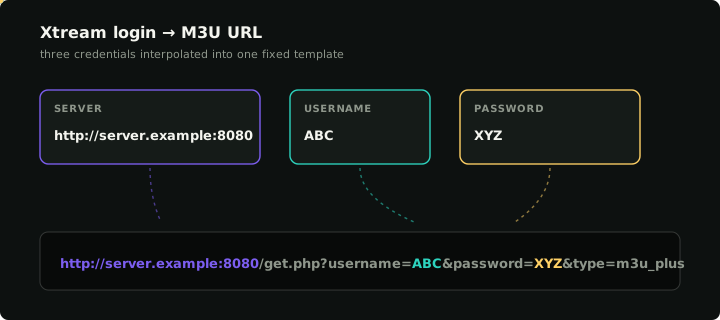
The converter builds three links from one login: the M3U playlist (get.php), the TV guide in XMLTV format (xmltv.php) and the Xtream API address (player_api.php). The full formula, with examples and edge cases, is in the step-by-step conversion guide.
Where do I find the server URL?
It is the address and port your provider sent with your login, for example http://server.example:8080. It never ends in /get.php or anything after it. If you only have a playlist link, paste it in the box above and the converter reads the server out of it. More in what the Xtream server URL is and what each player expects.
“Authentication failed” after converting?
The conversion cannot make a login fail: it only rearranges what you typed. When a player rejects the result, the usual causes are an expired account, all connections in use, a stray space in the username, or a server field that still holds a path. Work through them in why Xtream says authentication failed, or ask your provider's server directly with the Xtream login check (that tool sends your login to klipa.tv to test it).
TS or HLS?
The Stream format option decides which kind of stream links end up inside your playlist. MPEG-TS (output=mpegts) is what most TV boxes and Android players expect, and it is the default here. TS (output=ts) is the same format under the name some servers use. HLS (output=m3u8) splits each stream into short segments: pick it when streams will not start or keep stuttering on Samsung or LG TVs, Apple devices or browser players. A few servers call it output=hls; if m3u8 returns nothing, that is the name to try. The server decides which formats your account may use, so if one fails, go back to the default.
M3U to Xtream Codes converter
Choose M3U link → Xtream login above, or paste the link into the box at the top: the converter splits it into server, username and password. Why bother? With the login, many players add catch-up, films and series, and load the TV guide by themselves. Three short fields are also far easier to type with a TV remote than a link of a hundred characters.
Can I turn an M3U file into an Xtream login? No. A login only exists when the playlist comes from an Xtream server, and then its link contains username= and password=. A plain .m3u file or a link without those fields has no login behind it: use it as it is, in your player's M3U field.
Where is my EPG URL?
With an Xtream login it is the xmltv.php link the converter builds, and many players find it on their own when you use the login. If your player asks for it separately, paste the EPG (XMLTV) URL from the result. When the guide stays empty or shows the wrong times, see EPG not loading and EPG showing the wrong times.
Advanced: how players build single-stream links
You do not need these to watch anything: your player builds them from the login. They help when you read logs or test one stream by hand. Each stream in an Xtream playlist has a number, and its link follows this pattern:
http://server.example:8080/live/USER/PASS/STREAM_ID.ts
http://server.example:8080/live/USER/PASS/STREAM_ID.m3u8
USER and PASS are your login and STREAM_ID is the number of the stream in your playlist. If you paste one of these links into the box above, the converter reads your login back out of it.
FAQ
How do I convert Xtream to M3U?
Type the server, username and password (or paste your provider's message into the box at the top) and choose Build URLs. The M3U playlist URL is the first link in the result; copy it into your player's M3U field.
What is the difference between m3u and m3u_plus?
Both list the same streams. m3u_plus adds logos, groups and guide ids for each entry, which players use to sort your playlist and match the TV guide. Plain m3u is only for very old players that choke on the extra fields.
What does output=mpegts, ts or m3u8 change?
Only the format of the stream links inside the playlist: MPEG-TS for most TV boxes and Android players, HLS (m3u8) for Samsung and LG TVs, Apple devices and browsers. The server decides which formats your account may use.
Can I convert an M3U link to Xtream Codes?
Yes, when the link comes from an Xtream server: it then contains username= and password=, and the M3U link → Xtream login direction reads them out. A plain playlist file has no login behind it.
Is it safe to paste my Xtream login here?
The conversion runs in your browser and the page is built so it cannot send anything. Nothing is saved. The links you get contain your password, so keep them to yourself as you would the password.
Why does the link work in one app and not in another?
Apps differ in which stream format they play and in which field they expect. Check where to paste it (the guide under the result), then try Stream format HLS. If the login itself is refused, the app is not the problem: see why Xtream says authentication failed.