"EPG not loading" is the single most common complaint among people who set up IPTV on Android TV, and almost every cause looks identical from the user's side: the channel list is fine, video plays, but the guide is blank. The good news is that the failure modes are narrow. There are about six of them, and you can rule out most of them in a couple of minutes.
If only some channels say "EPG not available for this channel", start with what that message means. This guide walks through each one in the order they're worth checking. If you can paste your XMLTV URL into the EPG validator before you start, you'll skip steps 2–4 entirely.
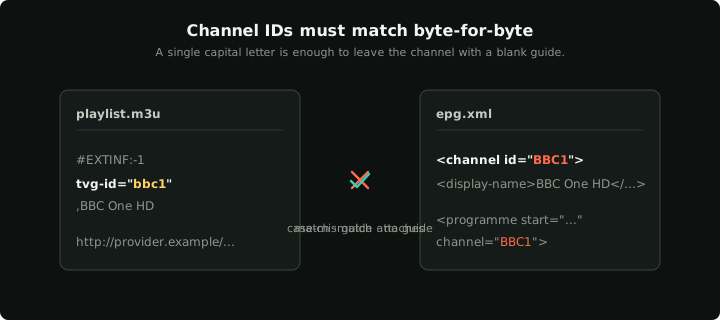
Channel IDs are matched byte-for-byte: a single capital letter is enough to leave a channel with a blank guide.
1. Check that you actually have an EPG URL
The first thing to verify is whether you even have a guide source configured. Some IPTV providers ship the channel list (M3U) and the guide (XMLTV) as two separate URLs, and a fair number of users set up one and assume the other came with it.
Open your player's source settings and look for two distinct fields. The M3U URL ends in .m3u, .m3u8, or contains type=m3u_plus. The XMLTV URL usually ends in .xml, .xml.gz, or contains xmltv.php. If only one field is filled in, that's your problem. Most Xtream-style providers expose the XMLTV at the same hostname as the playlist; the path is typically /xmltv.php?username=…&password=… with the same credentials.
2. Confirm the URL actually returns XMLTV
Paste the URL into a browser. You should see XML — text starting with <?xml or <tv> and full of <channel> and <programme> tags. If you see an HTML page instead, your provider has redirected you to a login or a captive portal, and your player is getting the same response. The fix is provider-side: the URL needs different credentials or a fresh token.
If you see XML but it's tiny — less than a few KB — your provider returned an empty document. That's also their problem; most XMLTV files for a few thousand channels are 5–50 MB.
3. Check the file's structure
This is where the EPG validator earns its keep. Paste the URL into the validator and look at the four numbers at the top:
- Channels. Should match roughly the number of channels in your M3U. If it's a tenth of that, the file isn't your provider's full guide.
- Programmes. Should be many thousands. A guide with under 100 programmes total isn't going to render anything useful.
- Covering next 24h. The single most important number. If it's zero, your guide is stale — the file parses, but every entry in it is in the past. The player has nothing to display.
- Hours total. A healthy EPG covers 24–168 hours forward from now. Less than 24 means the guide will run out today.
4. Look at the issues panel
If the numbers look right but the guide is still empty, the validator's issues list is the next place to look. Three issues are common in real provider output:
Orphan programmes. Programmes reference channel IDs that aren't declared as <channel> in the same file. Strict players (most of the modern Android TV ones) drop these on import — the programme has no channel to attach to, so it disappears. If your provider ships a few hundred orphans, that's normal and harmless. If they ship tens of thousands of them, that's why huge sections of your guide are empty.
Duplicate channels. The same channel ID appears in <channel> more than once. Most parsers keep the first declaration and silently drop the rest. If the dropped one had a different display name, the channel appears in the guide but with the wrong label.
No now-playing coverage. The validator's headline check: are any channels showing a programme right now? If the answer is zero, the guide will render entirely blank in any well-behaved player even though the XMLTV file is technically valid. Stale guide. Provider needs to refresh.
5. Verify the channel ID match
This one trips up almost everyone. The XMLTV's <channel id="…"> value has to match the tvg-id="…" in your M3U exactly. Case-sensitive, no fuzzy matching. If your M3U says tvg-id="twn1" and your XMLTV says <channel id="TWN1">, the player has no way to connect them, and the channel shows a blank guide cell.
To check, open your M3U in a text editor and look at any tvg-id value. Then check the same channel in the validator's "Top channels" table. The IDs should be byte-for-byte identical. If they aren't, you have three options:
- Find a tvg-id mapping file from your provider (some publish them).
- Manually edit your M3U to match the IDs in the EPG.
- Switch to a player that does fuzzy matching by display-name. Klipa does — but most don't.
6. Check the timezone
The XMLTV spec uses YYYYMMDDHHMMSS +ZZZZ timestamps. Some providers strip the offset, leaving naked timestamps with no timezone. Strict parsers treat those as UTC; lenient parsers guess based on the system locale; both are sometimes wrong, and the result is a guide that's offset by several hours — programmes appear under the wrong time slot, or last night's programmes show up as today's.
If your guide entries look right but offset, that's almost certainly the cause. The fix is ugly: you need a tool that shifts every timestamp by N hours. Until we ship the EPG timezone shifter as a tool, the workaround is to file a bug with your provider asking them to include the offset in their output.
When all else fails
If you've checked all six and the guide still won't load, the failure is in the player itself. Most modern IPTV players cache the EPG aggressively — sometimes for hours after a refresh. Force-clear the EPG cache, or uninstall and reinstall the app to force a clean import.
Klipa doesn't cache stale EPG: it re-fetches every six hours by default, and you can manually refresh from settings. If you want a player that already handles all six of these failure modes correctly out of the box, that's the pitch.