You have an IPTV subscription — an M3U URL or an Xtream login — and a television. Getting the first to play on the second is one of those problems that looks trivial and then eats an evening, because the answer depends entirely on what kind of TV you own. This guide covers every method that actually works, ranked from best to worst, and tells you honestly which ones to skip.
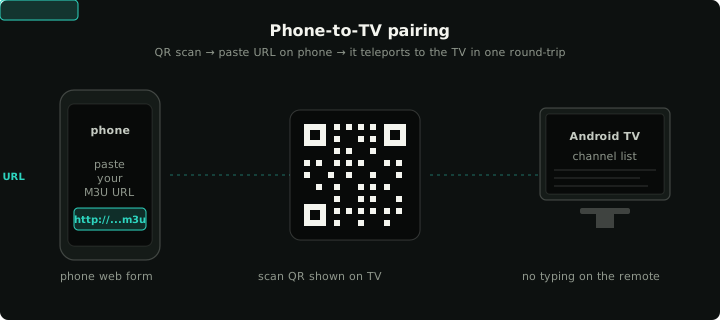
The fastest path on Android TV: pair your phone and let the playlist carry across — no typing on a remote.
Before anything: check the playlist works
Whatever method you pick, verify the playlist before touching the TV. Paste your M3U URL into the free M3U playlist tester in a desktop browser. If it parses zero streams, or every stream is dead, no app and no TV will fix that — the problem is the URL or the provider. Thirty seconds here saves an hour of blaming the wrong thing.
Method 1: a native app on Android TV or Google TV (best)
If your TV runs Android TV or Google TV — Sony, TCL, Philips, Hisense, the Chromecast with Google TV, the Nvidia Shield — this is the method to use. A native player gets you a proper remote-driven interface, an EPG, and direct playback with no second device involved.
Install Klipa from the Play Store on the TV (it's free, with no ads and no account), then get your playlist onto it. Typing a 200-character URL with a remote is a punishment, so don't: Klipa pairs with your phone instead.
How the pairing works — and why there's no sign-up: the TV shows a short code. You enter it in Klipa on your phone, and your playlist makes one encrypted round-trip to the TV. Nothing is stored along the way: the handoff is held in memory for at most a minute and deletes itself, claimed or not. No account, no email, no cloud library of your playlists. Pairing is the whole feature.
For a step-by-step walkthrough with screenshots — including what to do if your TV has no Play Store — see how to import an M3U playlist on Android TV.
Method 2: Fire TV Stick
Amazon's Fire OS is Android underneath, so Android IPTV players generally run fine on a Fire TV Stick — the catch is distribution. Check the Amazon Appstore first for the player you want; if it isn't listed, sideloading via the Downloader app is the established route. Only ever sideload an APK from the developer's own website, never from an APK mirror — IPTV apps are a favourite disguise for adware.
A Fire TV Stick is also the cheapest way to bolt this whole guide onto a TV that has no apps at all, which brings us to the next two methods.
Method 3: Samsung (Tizen) and LG (webOS) smart TVs
Here's the honest part: Samsung and LG TVs don't run Android, and their app stores have a thin, churning selection of IPTV players — apps appear, get pulled, and reappear under new names, many demanding a "lifetime activation" fee for software you already had to install. There are workable options in both stores, but the experience is a lottery.
If you own one of these TVs, you'll usually get a better result by not using the TV's own apps: either cast from your phone (next method) or plug a £30 Android TV stick into an HDMI port and use method 1. The stick outlives the TV's own app store support anyway.
Method 4: cast from your phone
Any TV with a Chromecast built in (every Android TV / Google TV set) or an AirPlay receiver can play what your phone is playing. Open the player on your phone, start a channel, hit cast. It works, and it requires installing nothing on the TV.
The trade-offs: your phone has to stay on, awake, and on the same Wi-Fi for as long as you're watching, and channel-surfing happens on the phone rather than the remote. It's the right method for occasional viewing and the wrong one for every-evening use. Full walkthrough: how to cast IPTV from your phone to your TV.
Method 5: HDMI from a laptop
It always works, it's never pleasant. A laptop on HDMI plays anything — VLC will open an M3U URL directly — but you've turned a television into a monitor and a sofa into a desk. Useful as a one-off (a match at a friend's house), not as a setup.
Which one should you pick?
- TV runs Android TV / Google TV → method 1, native app plus phone pairing. Nothing else is close.
- Fire TV Stick → method 2; Appstore if you can, careful sideload if you must.
- Samsung or LG → don't fight Tizen/webOS. Cast for casual use, or add a cheap Android stick and treat it as method 1.
- Hotel TV, friend's TV, one-off → cast or HDMI.
One last note: a player app — Klipa included — is just a player. It ships with no channels, and what you stream through it depends on the playlist you provide, so make sure your source is legitimate. The details, country by country, are in is IPTV legal?