Plenty of households have a perfectly good non-smart TV, an IPTV subscription, and a phone — and no obvious way to get the channels from one to the other. The good news: in 2026 there are at least four working approaches, and most of them are cheap.
This guide ranks them by cost and quality, and picks the right one for each situation.
Option 1: Buy a €40 Android TV box (best)
This isn't really "casting" — you install an IPTV player on the box itself and watch directly. But it's the right answer for most people, so it goes first.
A Xiaomi Mi Box S, an Onn 4K box, or any of the dozen Android TV boxes in the €40–€80 range plugs into HDMI, connects to your Wi-Fi, runs the Google Play Store, and installs Klipa (or any IPTV player) natively. The phone becomes irrelevant; the TV runs the channels itself.
Pros: Full quality, no lag, no dropped connections when your phone goes to sleep. Works with any TV with an HDMI port, smart or not.
Cons: Costs money. Adds a remote.
If you watch IPTV daily, this is the right move. The €40 is recovered in two months of subscription savings, and the experience is dramatically better than any cast-based approach. There's a step-by-step walkthrough for setting up an Android TV box elsewhere on this site.
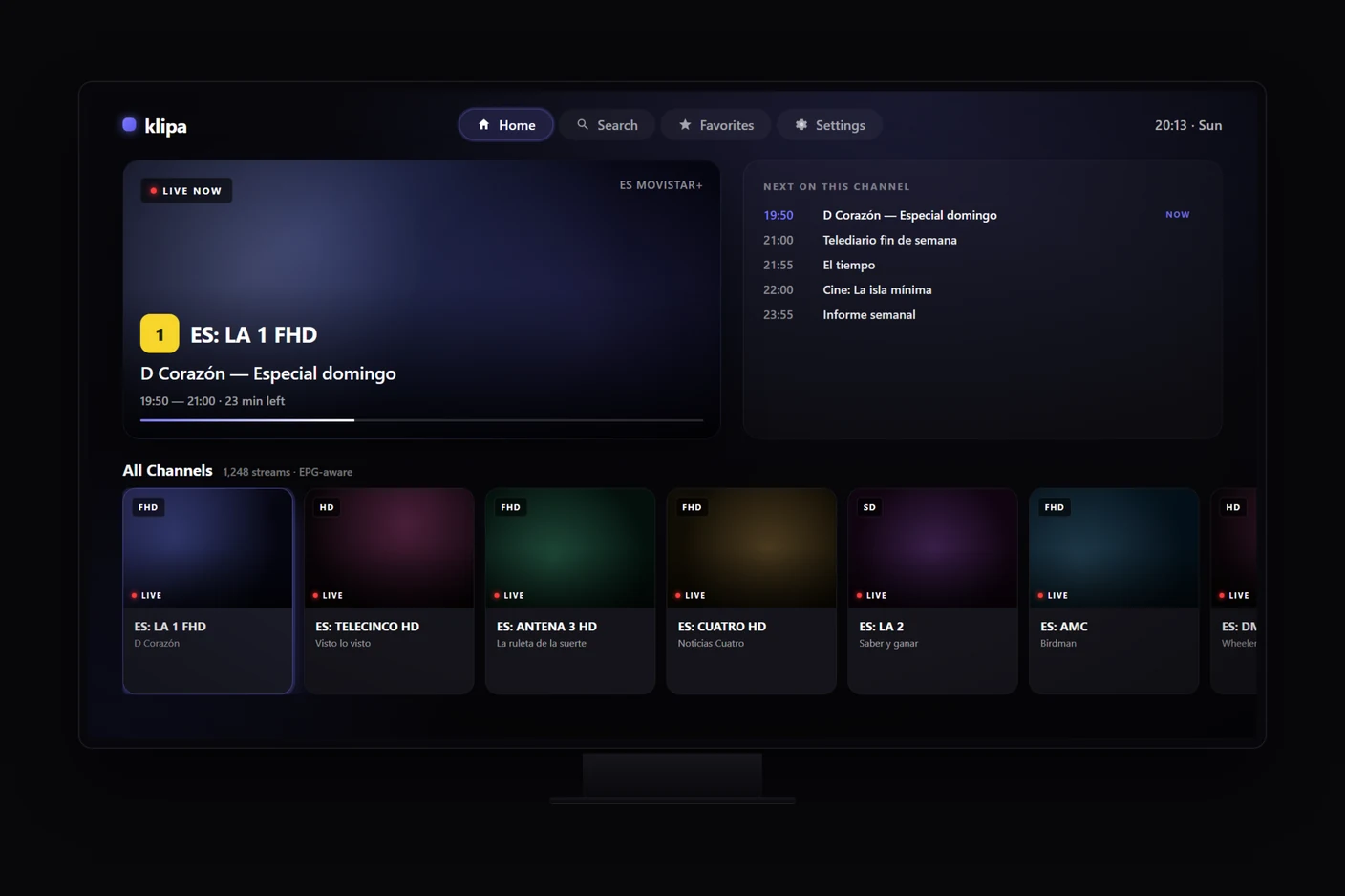
An IPTV player running natively on Android TV — same library as the phone, no casting in the loop.
Option 2: Chromecast (or built-in Google Cast)
A €30 Chromecast plugs into your TV's HDMI port. You install an IPTV player on your phone, tap the cast icon, and the video plays on the TV while your phone becomes a remote.
Pros: Cheap. Phone remains usable for other things — you can answer messages without interrupting the stream.
Cons: Not every IPTV player supports casting properly. The cast protocol re-streams from the phone, which adds latency and occasionally compresses quality. Live sport over Chromecast specifically can lag the phone's audio by half a second.
How to do it in practice: Install an IPTV app that explicitly supports Cast (VLC's Android build does; check the app's description). Start playing a channel on the phone. The cast button appears in the player controls. Tap it, pick the Chromecast, the stream moves to the TV.
Option 3: HDMI cable from the phone
The most underrated option. Most modern Android phones support USB-C to HDMI via a €10 adapter (look for one that advertises "DP Alt Mode"). iPhones with Lightning need Apple's official adapter (€55, expensive but reliable); iPhone 15+ with USB-C uses the same cheap adapters as Android.
Plug the phone in, the TV picks up the input as if it were a console, and whatever's on the phone screen appears on the TV.
Pros: Zero latency. Full quality. Works on any TV with HDMI, no smart features required. No Wi-Fi or network configuration needed.
Cons: The phone is wired to the TV; you can't take it elsewhere without interrupting playback. Some Android phones bizarrely don't support HDMI output even via USB-C (typically older mid-range models — check before buying the adapter).
This is the best option if you only watch IPTV occasionally and don't want a permanent setup.
Option 4: Built-in screen mirroring (last resort)
Most modern phones support some form of screen mirroring — AirPlay on iPhone (to AirPlay-compatible receivers), Miracast on Android (to Miracast-compatible TVs or dongles), Google Cast.
Pros: No cable, no extra hardware if your TV already supports it.
Cons: Quality is the worst of the four options. Compression is heavy, latency is noticeable, the connection drops if your phone goes to sleep or you walk too far from the router.
The reason this option is last: if your TV is recent enough to support screen mirroring properly, it's also recent enough to be a smart TV that can run an IPTV app directly. Skip the mirroring; install the app.
The "smart TV with no IPTV player" case
Some smart TVs run a closed app ecosystem (Samsung's Tizen, LG's webOS, older Sony Bravia) that doesn't have a good IPTV player available. The "smart" features are useless for this purpose.
For these TVs, treat them as not-smart. Pick option 1 (Android TV box) or option 3 (HDMI cable from phone). The smart features of the TV become irrelevant.
What about Apple TV?
An Apple TV is a perfectly good IPTV setup if you live in the Apple ecosystem — it can run several IPTV players from the App Store and supports AirPlay properly. Klipa is on iOS but not yet on the Apple TV's tvOS; if your household is iOS-only, an Apple TV plus an iOS IPTV player is a clean solution.
It's the most expensive of the options here — €170+ — but the experience is closer to a TV-native setup than any of the casting routes.
Summary by situation
- Watching IPTV daily: €40 Android TV box. Don't bother casting.
- Occasional viewing, already have the phone: USB-C to HDMI cable.
- Want to keep using the phone while watching: Chromecast.
- Don't want any new hardware, accept compromise: built-in mirroring.
If you decide on the Android TV box route, the M3U import guide walks through the setup end-to-end.
Frequently asked questions
What's the best way to watch IPTV on a TV that isn't smart?
A €40 Android TV box (a Xiaomi Mi Box S, an Onn 4K box, or similar) plugged into HDMI. You install an IPTV player on the box itself and watch directly — full quality, no lag, no dropped connection when your phone sleeps. The casting routes are all second-best to this.
Can I cast IPTV from my phone with a Chromecast?
Yes, if your IPTV player explicitly supports Google Cast. A €30 Chromecast is cheap and keeps your phone usable while it watches, but the cast protocol re-streams from the phone, which adds latency and can compress quality — live sport in particular can lag the phone's audio by about half a second.
Can I just connect my phone to the TV with a cable?
Often yes, and it's underrated. Most modern Android phones and the iPhone 15+ output video over a €10 USB-C to HDMI adapter (look for "DP Alt Mode"); older iPhones need Apple's Lightning adapter. It's zero-latency and full quality, but the phone stays wired to the TV while you watch.
Which method should I pick?
Watching daily → a €40 Android TV box, no casting. Occasional viewing with the phone you already have → a USB-C to HDMI cable. Want to keep using the phone while watching → Chromecast. Don't want any new hardware and accept some compromise → built-in screen mirroring.