If you've just signed up with an IPTV provider, you'll have been handed an M3U URL. Importing it on Android TV is straightforward in principle, but the small details — typing on a TV remote, picking a player, dealing with a broken playlist — make the first attempt frustrating more often than it should be. This guide gets you through it in a single sitting.
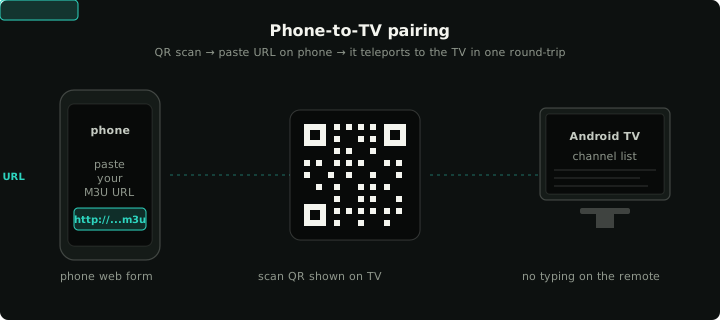
The fastest path: paste the URL on your phone and let the QR pairing carry it across to the TV.
Step 0: Check the playlist works first
The single biggest time-saver, and the step almost everyone skips, is verifying the playlist actually works before you install a player. Paste the URL into the M3U playlist tester on a desktop browser. The tester fetches the playlist and probes the first 100 streams in parallel.
You're looking for three things:
- Streams parsed. If this is zero, the URL is wrong, the credentials are wrong, or your provider has returned an HTML login page instead of a playlist. Don't proceed until you see channel names listed.
- Resolving streams. If 0/100 resolve, the playlist is technically correct but every stream is dead. Either the provider is down right now or your IP is blocked from their CDN.
- Latency. If most streams take more than a second to respond, expect buffering. Some providers route badly to certain countries; a working playlist that takes 5+ seconds per stream isn't worth installing.
If the tester shows mostly green and reasonable latency, the playlist works. Now install something.
Step 1: Install Klipa from the Google Play Store on Android TV
Open the Play Store on your Android TV box. Search for "klipa". Install. The app is free, doesn't require an account, and doesn't ship with any built-in channel list — you bring your own playlist. (If you're reading this guide, that's already what you wanted.)
If your TV doesn't have the Play Store, sideloading is possible but out of scope here. Look for the right APK on the Klipa website, never on a random APK mirror.
Step 2: Get the playlist URL onto the TV
This is the friction point. Typing a 200-character URL on a TV remote is a punishment. There are three reasonable workarounds:
The remote app. If your phone is paired to the TV (most Android TV remotes work this way), the on-screen keyboard accepts text typed on your phone. Open the M3U URL in your phone's browser, copy it, paste into the TV's URL field. Doable but fiddly.
Phone-to-TV pairing. Klipa has a built-in flow: open the app on the TV, choose "Pair from your phone", scan the QR code with your phone's camera. The phone navigates to a small web form, you paste the URL there, and it teleports to the TV in one round-trip. No typing. No third-party services. This is the fastest option by a wide margin.
A USB drive. Save the URL into a .txt file on a USB stick, plug it into the TV. This works but isn't really worth the effort unless you're offline.
Step 3: Add the playlist as a source
Inside Klipa, navigate to Settings → Sources → Add source. Pick "M3U URL", paste the URL, give it a friendly name (e.g. the provider's name). Save.
The app will fetch and parse the playlist. For a typical provider with a few thousand channels this takes 5–15 seconds. The progress bar tells you how many channels it found; if that number doesn't match what you expected, the URL is wrong or the provider returned a partial playlist.
Step 4: Add the EPG separately (if your provider supplies one)
The EPG (electronic program guide — the listing of what's on now, what's on next) is shipped as a separate XMLTV URL. Most Xtream-style providers expose it at:
http://<server>/xmltv.php?username=<u>&password=<p>
Add it as a second source in Klipa, picking "XMLTV URL". The first ingest can take a minute on a large guide; subsequent refreshes are background and don't block anything.
If the guide doesn't show up after import, walk through the EPG troubleshooting guide. The most common cause by far is tvg-id mismatch between the playlist and the EPG.
Step 5: Test
Open the channel list. Pick any channel near the top. It should start playing within 3–4 seconds — much longer means a buffering problem (separate guide; usually upstream).
Specifically check three things:
- Channel logos. They should populate within a few seconds of opening the list. If they stay blank, the playlist's
tvg-logoURLs are broken (provider's problem). - EPG data. Press the directional pad up while a channel is playing. You should see "now playing" and "next" entries. If you see "no information", the EPG isn't matched up — see step 4.
- Channel switching. Switch back and forth between two channels. The first switch is always slow (the player hasn't seen the stream yet); the second switch should be quick. If channel changes consistently take 5+ seconds, the upstream is slow, not the player.
Step 6: Save your favourites
This step gets skipped because the channel list works fine in raw form. It shouldn't. A typical provider ships 5,000+ channels organised by country and theme, most of which you'll never watch. Mark 30–50 favourites and switch the home view to "Favourites". Browsing by 5,000-channel category list every time is tedious enough that people abandon IPTV over it.
In Klipa, you favourite a channel by long-pressing it. Favourites get their own row at the top of the home screen.
What to do if it's still not working
Two failure modes are common after import:
- The app crashes on opening the channel list. Almost always means the playlist contains an entry the parser doesn't like. Re-run the M3U tester and look for channels with unusual characters in their names or URLs. If you find one, edit the playlist to remove it.
- Streams take 10+ seconds to start. Could be the player; could be the upstream. Try the same playlist on a different device on the same network. If both are slow, it's the upstream. If only Android TV is slow, check whether you have a VPN or DNS-level blocker active — both add a measurable delay to the first packet of every stream.
If you've made it this far and everything works, save the playlist URL somewhere safe — you'll need it again next time you reset the TV.